
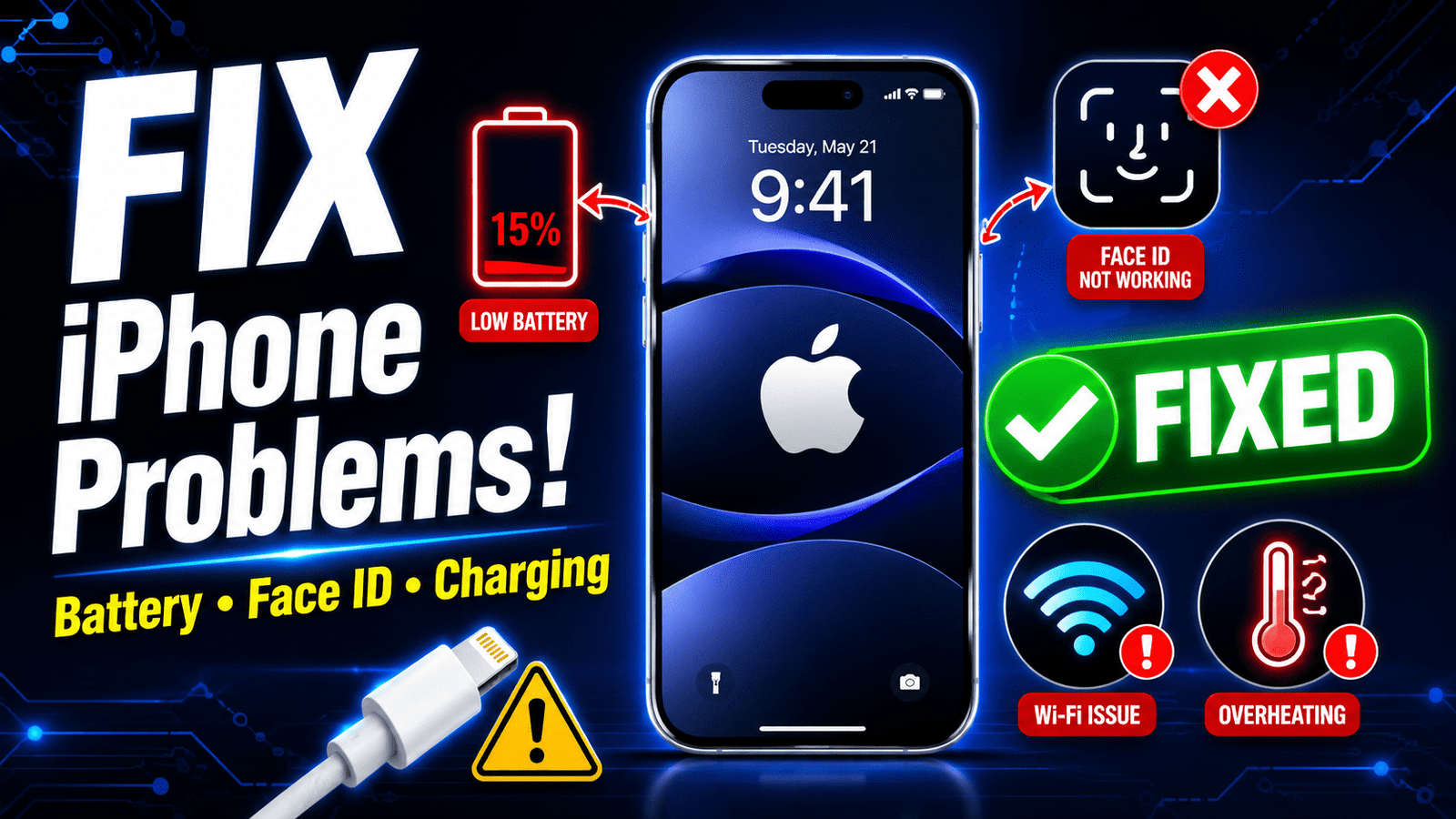
iPhone Problems and Fixes: Many iPhone user are experiencing iPhone problems after the latest iOS 26 update? So, if you are also facing this then you are not alone iPhone user who are facing problem after iOS update.
As we know that Apple iPhones are popular for their performance, reliability, but time to time software updates sometimes introduce unexpected issues in the iPhone.
Millions of iphone users have recently reported problems such as battery drain, overheating, app crashes and sluggish performance after recent iOS 26 update.
Although, The news for iPhone user is that most of these iPhone issues can be resolved at home by self.
This iphone troubleshooting guide provides proven, expert-backed solutions to get your iPhone Problems and Fixes back to its best performance.
Do you want a quick answer?
Software vs Hardware Issue: Common iPhone Problems and Fixes
Before we start, it’s helpful to know if you’re dealing with a software glitch or a hardware problem.
| Symptom | Likely Software | Likely Hardware |
|---|---|---|
| Battery drain | ✓ | ✓ |
| Face ID failure | ✓ | ✓ |
| App crashes | ✓ | ✗ |
| Charging issue | ✓ | ✓ |
| Cracked screen | ✗ | ✓ |
Here are Most Common iPhone Problems in 2026 that Apple iPhone user facing:
Software Issues:
App crashes, poor battery life, Bluetooth/Wi-Fi problems, and unresponsive touch screens are often software-related.
Hardware Issues:
Cracked screens, a camera that won’t focus, a completely unresponsive screen, or a phone that won’t charge at all likely point to hardware damage.
If your problem persists after trying the fixes below, it’s more likely a hardware issue requiring professional service.
iPhone Battery Draining Fast
Is your iPhone battery draining faster than usual? This is one of the most common complaints after any iOS update.
First-Hand Experience
When I updated my iPhone 15 Pro to iOS 26.5, I immediately noticed my battery dropping from 100% to 30% by early afternoon, despite light use.
After some testing, I found that the “Home & Lock Screen” was consuming nearly 40% of my battery due to a feature called “iPhone Mirroring.”
Expert Tips to Fix Battery Drain
Based on my experience and advice from Apple experts, here are the most effective fixes:
Check Battery Usage (The #1 Fix):
Go to Settings > Battery to see which apps are draining your power.
In my case,
disabling Settings > General > AirPlay & Handoff > iPhone Mirroring immediately solved the drain.
Update to iOS 26.5 or Later:
Apple’s May 2026 iOS 26.5 release includes critical patches for battery and performance.
Go to Settings > General > Software Update to install it.
Enable Optimized Battery Charging:
Turn this on under Settings > Battery > Battery Health & Charging to reduce battery wear and improve long-term life.
Disable Background App Refresh:
Go to Settings > General > Background App Refresh and turn it off for all non-essential apps.
Check for a Faulty App:
In the Battery settings, look for any app with unusually high background activity. Try updating or deleting that app.
Expert Tip: If you just updated iOS, give your phone 24-48 hours to finish background processes before worrying about battery life.
Fixing iPhone Overheating
iPhone Overheating: Common Reasons and Prevention Methods
An overheating iPhone can severely impact performance and battery health. According to Apple, your iPhone is designed to operate best in temperatures between 0°C and 35°C (32°F to 95°F).
Common reasons for iPhone overheating:
prolonged gaming sessions, streaming high-resolution videos, running multiple apps simultaneously, charging with low-quality accessories, direct exposure to sunlight, and software bugs that cause excessive background activity. Poor network signals can also force the device to work harder, generating additional heat.
Immediate Cooling Steps
If your iPhone feels hot to the touch, take these steps immediately:
Remove the Case:
Thick cases trap heat and prevent cooling.
Stop Charging:
Charging naturally generates heat; unplug your iPhone until it cools.
Close Heavy Apps:
Force-quit any games, GPS navigation, or video streaming apps.
Move to a Cooler Area:
Never leave your phone in direct sunlight or a hot car.
Long-Term Prevention
Avoid Prolonged Sun Exposure: Direct sunlight is a common cause of overheating, especially for GPS navigation.
Update All Apps:
Outdated apps can cause software conflicts that lead to overheating.
Restart Your iPhone:
This can stop any rogue background processes that are overworking the processor.
Resolving iOS 26 Keyboard Lag & Inaccuracy
Is your Apple iPhone keyboard suddenly feeling “broken”? You’re not the only iPhone user facing this issue. Many users have reported keyboard lag, inaccurate key presses, and strange auto-correct behavior since iOS 26.
Proven Fix
Update to iOS 26.4 or Later:
Apple released iOS 26.4 specifically to fix these keyboard issues. The update notes say it improves “keyboard accuracy when typing quickly”.
Reset the Keyboard Dictionary:
If problems persist, go to Settings > General > Transfer or Reset iPhone > Reset > Reset Keyboard Dictionary.
This clears saved errors and gives you a fresh start.
iPhone Not Charging
iPhone Not Charging: Cable Issues, Port Problems, and Software Fixes
If your iPhone is not charging, the issue may be related to the charging cable, charging port, or software settings. Identifying the cause can help you restore normal charging quickly.
Start by checking the charging cable and adapter. Frayed cables, damaged connectors, or uncertified accessories can prevent proper charging. Try using an Apple-certified cable and test a different power adapter or wall outlet to rule out accessory-related issues.
Next, inspect the charging port. Dust, lint, and debris can accumulate inside the Lightning or USB-C port, blocking the connection. Carefully clean the port with a soft, non-metallic tool and check for signs of physical damage or corrosion. If the cable feels loose when connected, the port may need professional repair.
Software glitches can also interfere with charging. Restart your iPhone, update to the latest iOS version, and check for any system errors. If charging issues persist, try a force restart or reset all settings without erasing your data.
By troubleshooting cables, ports, and software, you can resolve most iPhone charging problems and keep your device powered reliably.
H3 Fixing Face ID & Authentication Gaps
Many users have reported Face ID failing in third-party apps like banking or password managers, even when it works fine for unlocking the phone.
How to Fix
Update All Apps:
App developers often release fixes for iOS compatibility issues.
Re-enable Face ID for the App:
Go to Settings > Face ID & Passcode > Other Apps and toggle the problematic app off and back on.
Reset Face ID: As a last resort, go to Settings > Face ID & Passcode > Reset Face ID and set it up again.
H3 Fixing Cellular & Wi-Fi Connectivity
When you see “No Service” or “Searching” on your iphone, it makes any iPhone user frustrated.
Troubleshooting no service Steps
Toggle Airplane Mode:
Open Control Center in iPhone, tap the Airplane Mode icon, wait 15 seconds, and tap it again to reconnect.
Restart Your iPhone:
A simple restart often resolves temporary network glitches.
Check for Carrier Settings Update: Go to Settings > General > About. If an update is available, a pop-up will appear.
Contact Your Carrier: If the above steps fail, your carrier can check for account or network issues.
H3 Resolving iPhone App Crashes & Slow Performance
Apple iPhone App crashes, freezing, and overall sluggishness are common problems iPhone users face after major iOS updates.
Solutions
Update iOS and Apps:
Whenever you face issue or problem in your iPhone, follow this step first is most important.
Restart Your iPhone Regularly:
Schedule a weekly restart of your iPhone that helps to clear out temporary memory files and keeps things running smoothly.
Check Available Storage:
Your iPhone needs to free up space to operate smoothly.
Go to Settings > General > iPhone Storage and offload unused apps or files.
Force Restart iPhone:
If your iphone is frozen, a force restart can bring it back to the life of a smartphone.
H3 When to Seek Professional Repair
While many issues are software-related, some require professional help.
You can take professional repair help if you experience:
1.A cracked or shattered screen
2. An iPhone that won’t turn on, even after charging and a force restart
3. A camera that won’t focus or a microphone that doesn’t work
4. Continuous/Persistent battery or charging issues after trying all software fixes
You can schedule visit a repair at an Apple Store or through an Apple Authorized Service Providers.
AirPods Not Connecting
AirPods Not Connecting: Reset AirPods and Bluetooth Reset Solutions
If your AirPods are not connecting to your iPhone, the issue is usually related to Bluetooth settings, pairing errors, low battery levels, or temporary software glitches. Fortunately, most connection problems can be resolved in a few minutes.
Start by checking that both your AirPods and charging case have sufficient battery power. Then, place the AirPods in the charging case, close the lid for about 30 seconds, and reopen it near your iPhone. If they still don’t connect, reset the AirPods. Go to Settings > Bluetooth, tap the information icon next to your AirPods, and select Forget This Device. Then place the AirPods in the case, press and hold the setup button on the back until the status light flashes amber and then white. Reconnect them as if they were new.
You can also perform a Bluetooth reset by turning Bluetooth off and on again or restarting your iPhone. If necessary, reset network settings to refresh all wireless connections.
These troubleshooting steps resolve most AirPods connection issues and restore seamless pairing.
Camera Not Working
Camera Not Working on iPhone: Lens Issues and Software Bug Fixes
If your iPhone camera is not working, showing a black screen, freezing, or producing blurry images, the problem may be related to lens issues or software bugs. Identifying the cause can help you restore normal camera functionality quickly.
Lens issues are often caused by dirt, fingerprints, protective case obstructions, or physical damage to the camera module. Start by cleaning the camera lens with a soft microfiber cloth and ensuring that your case or screen protector is not blocking the camera. If photos remain blurry or the camera shakes excessively, there may be a hardware problem requiring professional repair.
Software bugs can also prevent the camera from functioning correctly. Close the Camera app completely and reopen it, then restart your iPhone. Check for the latest iOS updates, as Apple frequently releases bug fixes that improve camera performance. If the issue persists, reset all settings to eliminate software conflicts without deleting personal data.
By addressing both lens-related problems and software glitches, you can resolve most iPhone camera issues and get back to capturing clear photos and videos.
iPhone Running Slow
iPhone Running Slow: Storage Cleanup, Background Apps, and iOS Updates
If your iPhone feels sluggish, takes longer to open apps, or experiences lag during everyday tasks, the issue is often related to limited storage, excessive background activity, or outdated software. Fortunately, there are several ways to improve performance.
Start with storage cleanup. Go to Settings > General > iPhone Storage and remove unused apps, old photos, videos, and large files that are taking up valuable space. Keeping at least a few gigabytes of free storage helps iOS run more efficiently.
Next, manage background apps. Too many apps running or refreshing in the background can consume system resources and slow down your device. Disable unnecessary Background App Refresh by navigating to Settings > General > Background App Refresh and turning it off for apps that don’t need constant updates.
Finally, install the latest iOS updates. Apple regularly releases software updates that include performance improvements, bug fixes, and security enhancements. Go to Settings > General > Software Update and install any available updates.
By cleaning storage, limiting background activity, and keeping iOS up to date, you can significantly improve your iPhone’s speed and overall performance.
Touchscreen Not Responding
Touchscreen Not Responding on iPhone: Causes and Fixes
A non-responsive iPhone touchscreen can make it difficult to use your device and may be caused by either software glitches or hardware-related issues. Understanding the cause is the first step toward resolving the problem.
Common causes include temporary iOS bugs, low available storage, unresponsive apps, screen protectors interfering with touch sensitivity, moisture on the screen, or physical damage from drops and impacts. In some cases, overheating or a faulty display component can also affect touchscreen performance.
To fix the issue, start by cleaning the screen and removing any thick or damaged screen protectors. If the screen is partially responsive, restart your iPhone. For a completely frozen screen, perform a force restart by pressing the appropriate button combination for your iPhone model. Next, ensure your device is running the latest iOS version, as updates often include fixes for touch-related bugs. Free up storage space and close problematic apps that may be causing system instability.
If the touchscreen remains unresponsive after these steps, the issue may be hardware-related and require professional diagnosis or repair from an authorized service provider.
Issues After iOS Updates
Issues After iOS Updates: Battery Drain, Overheating, App Crashes, and Network Problems
It’s not uncommon to experience temporary issues after installing a new iOS update. Problems such as battery drain, overheating, app crashes, and network connectivity issues often occur while the system completes background optimization tasks.
If you’re experiencing battery drain, give your iPhone a day or two to finish indexing and optimization. You can also reduce screen brightness, disable unnecessary background app refresh, and enable Low Power Mode. For overheating, avoid intensive tasks like gaming or video editing immediately after the update and keep your device out of direct sunlight.
App crashes are often caused by compatibility issues with older app versions. Visit the App Store and update all installed apps to ensure they work properly with the latest iOS release. If a specific app continues crashing, delete and reinstall it.
For Wi-Fi, Bluetooth, or cellular network issues, restart your iPhone and router, then check for carrier updates. If problems persist, reset network settings through Settings > General > Transfer or Reset iPhone > Reset > Reset Network Settings.
These steps resolve most post-update issues and help restore smooth iPhone performance.
When to Contact Apple Support
When to Contact Apple Support: Hardware Damage, Water Damage, Battery Replacement, and Warranty Coverage
While many iPhone issues can be resolved through basic troubleshooting, some problems require professional assistance. Knowing when to contact Apple Support can save time and help prevent further damage to your device.
Hardware damage is one of the most common reasons to seek support. If your iPhone has a cracked screen, damaged charging port, malfunctioning buttons, or camera issues that persist after troubleshooting, professional repair may be necessary. Water damage is another serious concern. Even though newer iPhones offer water resistance, liquid exposure can still damage internal components and should be evaluated by a technician.
Battery replacement may be needed if your battery health has significantly declined, causing poor performance, unexpected shutdowns, or rapid battery drain. Apple can diagnose the issue and replace the battery if required.
You should also contact Apple Support to verify warranty coverage or eligibility for repairs under AppleCare. If your device is still covered, you may be able to receive repairs or replacements at a reduced cost.
Professional support is recommended whenever hardware-related issues cannot be resolved through software troubleshooting.
Contact Apple Support If:
- Battery health is below 80%
- Device has water damage
- Face ID hardware fails
- Screen remains black after force restart
- Charging port is physically damaged
Preventing Future iPhone Problems
Preventing Future iPhone Problems: Updates, Storage Management, and Battery Care
Preventive maintenance is one of the best ways to keep your iPhone running smoothly and avoid common issues such as slow performance, battery drain, app crashes, and connectivity problems. A few simple habits can significantly extend the life of your device.
Start by installing regular iOS updates. Apple frequently releases updates that include security patches, bug fixes, and performance improvements. Keeping your iPhone updated helps prevent software-related problems and ensures compatibility with the latest apps.
Proper storage management is equally important. Regularly delete unused apps, duplicate photos, old videos, and unnecessary files to maintain adequate free space. A nearly full storage drive can slow down performance and affect system stability.
Battery care also plays a major role in long-term reliability. Avoid exposing your iPhone to extreme temperatures, use certified charging accessories, and enable Optimized Battery Charging to reduce battery wear. Whenever possible, keep your battery level between 20% and 80% for optimal health.
By staying updated, managing storage efficiently, and following good battery practices, you can minimize future iPhone problems and maintain peak performance for years.
Downloadable Troubleshooting Checklist:
Print iPhone troubleshooting checklist and keep it handy for your next iPhone issue/problem:
1.Restart your iPhone
2. Check for iOS update (Settings > General > Software Update)
3. Update all apps
4. Check battery usage (Settings > Battery)
5. Reset settings (Settings > General 6. Transfer or Reset iPhone > Reset)
7. Force restart (if frozen)
8. Restore from backup (as a last resort)
I hope this guide helps you get your iPhone running smoothly again. Do you have any specific iPhone issues you’d like me to cover in more detail?
FAQ
Why is my iPhone battery draining so fast?
Rapid battery drain is often caused by background apps, high screen brightness, poor network signals, or an aging battery. Checking battery usage and updating iOS can help improve battery life.
Why is my iPhone overheating?
Your iPhone may overheat during intensive tasks such as gaming, video streaming, or charging. Excessive background activity, software bugs, and exposure to direct sunlight can also contribute to overheating.
How do I fix Face ID not working?
Start by cleaning the TrueDepth camera, ensuring Face ID is enabled, and restarting your iPhone. If the issue persists, reset Face ID and set it up again through Settings.
Why is my iPhone stuck on the Apple logo?
This usually happens due to a failed iOS update, corrupted software, or an interrupted restore process. A force restart or Recovery Mode update can often resolve the issue.
Is it safe to update iOS immediately?
Yes, iOS updates are generally safe and include important security patches and bug fixes. However, some users prefer waiting a few days to monitor reports of any unexpected issues.
How long should an iPhone battery last?
Most iPhone batteries are designed to retain up to 80% of their original capacity after approximately 500 full charge cycles, which typically translates to around 2–3 years of regular use.
Sources:
- Apple Support
- Apple Battery Service
- Apple iPhone User Guide
Also Read:
How to Improve iPhone Battery Life
iPhone Overheating Fix Guide
Face ID Troubleshooting Guide
iPhone Storage Management Tips
When to Replace Your iPhone Battery



Rishi Sanuj is write article related to Tech and Gadget, Gaming, AI Tools, Software with 8+ years of experience covering PlayStation, and next-gen gaming trends.