
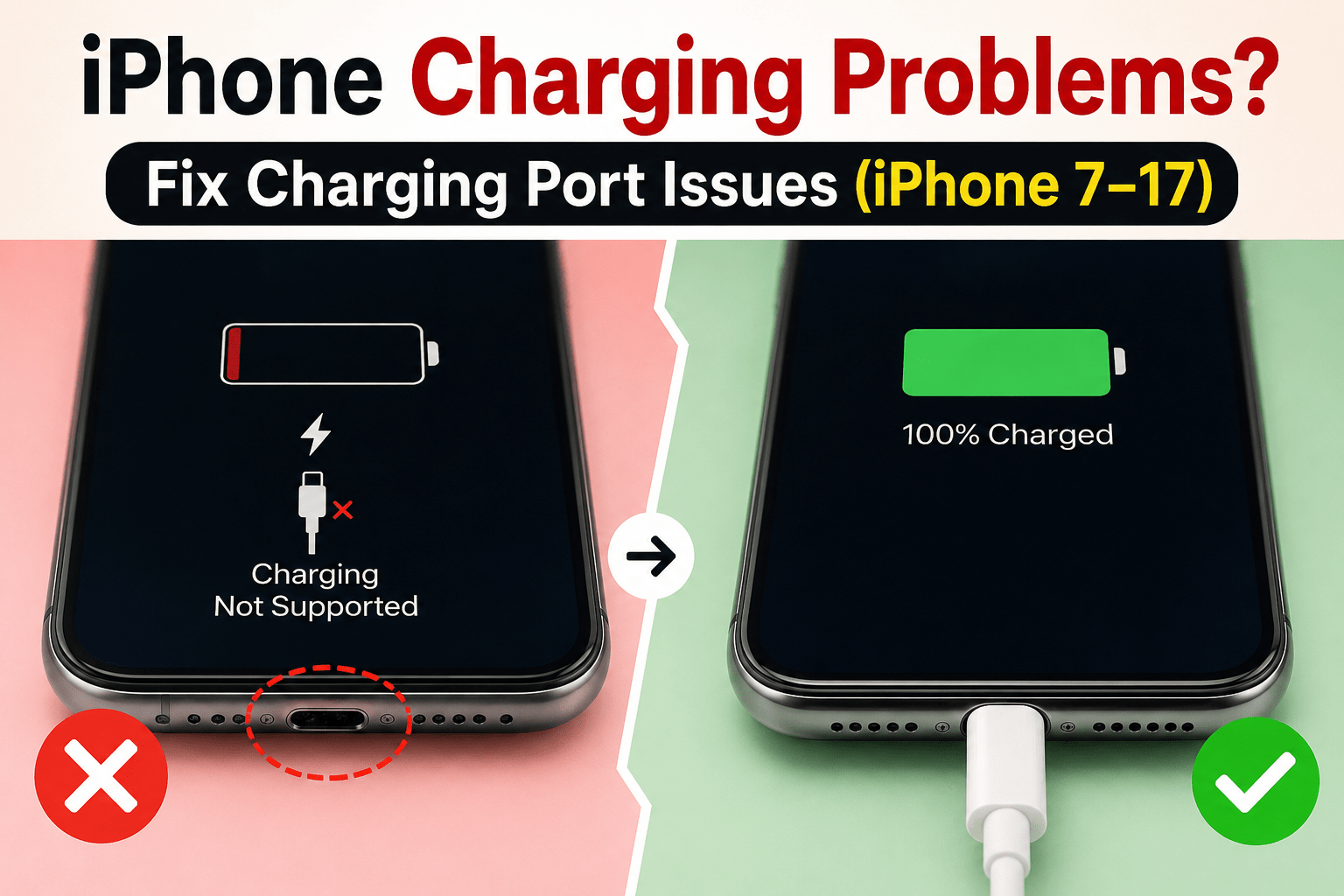
Fix iPhone Charging Problems : Are you facing iPhone charging problems and wondering why your device won’t charge properly? Whether your iPhone won’t charge when plugged in, charges intermittently, or becomes hot while charging, you’re not alone. Millions of users experience common issues such as iPhone charging port problems, iPhone charging connection problems, and battery-related faults.
From the aging iPhone 7 charging issues to the latest iPhone 17 charging problem, charging failures can occur due to dust accumulation, damaged cables, software bugs, overheating, or battery degradation.
Many users also report intermittent charging iPhone issues, slow charging speed, and wireless charging failures. Models including the iPhone 11, iPhone 12, iPhone 13, iPhone 14, iPhone 15, iPhone 16, and iPhone 17 may encounter these problems.
This guide explains the causes, troubleshooting methods, and solutions to help restore normal charging performance and extend battery life.
How to Fix iPhone Charging Problems
Follow these steps to fix iPhone charging problems:
- Clean the charging port to remove dust and debris.
- Use an original or Apple-certified charger.
- Restart your iPhone to eliminate temporary software issues.
- Update iOS to the latest version.
- Check battery health in Settings > Battery > Battery Health & Charging.
- Test another charging cable and power adapter.
- Visit Apple Support if the issue persists.
Common Causes of iPhone Charging Problems
Dirty Charging Port
A blocked Lightning or USB-C port is one of the most common reasons behind an iPhone charging port problem.
Over time, dust, lint, and small debris can accumulate inside the charging port, preventing the charging cable from making proper contact with the internal connectors.
As a result, your iPhone may charge intermittently, disconnect repeatedly, charge very slowly, or fail to charge altogether.
In some cases, users may notice that the cable feels loose or only works when positioned at a certain angle. Regularly inspecting and carefully cleaning the charging port with a soft brush or wooden toothpick can help remove debris and restore proper charging.
However, avoid using metal objects or excessive force, as these can damage the delicate pins inside the port and lead to more serious hardware issues.
Faulty Charging Cable
Faulty Charging Cable
A faulty or damaged charging cable is another common cause of intermittent charging iPhone issues. Over time, charging cables can develop frayed wires, bent connectors, or internal damage that prevents a stable power connection.
As a result, your iPhone may charge slowly, disconnect and reconnect repeatedly, or fail to charge altogether. In some cases, the device may only charge when the cable is held at a specific angle.
Using low-quality or non-certified accessories can also cause iPhone charging connection problems and may even trigger warnings such as “Accessory Not Supported.”
To ensure safe and reliable charging, it is recommended to use original or Apple-certified cables and replace any cable that shows signs of wear or physical damage.
Battery Health Deterioration
Older batteries can cause several issues with your iPhone. As the battery ages and its capacity decreases, you may experience an iPhone not charging problem or frequent iPhone charging connection problems, where the device charges intermittently or fails to recognize the charger properly.
In addition, a worn-out battery can lead to unexpected shutdowns, causing the iPhone to turn off suddenly even when there is still battery power remaining.
Older batteries can cause:
- iPhone not charging problem
- iPhone charging connection problems
- Unexpected shutdowns
Software Bugs
Software bugs and iOS-related glitches can sometimes cause unexpected charging problems on an iPhone. Although iOS updates are designed to improve performance and security, they may occasionally introduce bugs that affect the charging system.
As a result, users may experience issues such as the iPhone not charging properly, slow charging, intermittent charging, or the device failing to recognize a charger. In some cases, charging may stop at a certain battery percentage or wireless charging may become unreliable after an update.
Temporary software glitches, corrupted settings, or incompatible apps can also interfere with normal charging behavior. Restarting the device, updating to the latest iOS version, or performing a settings reset often helps resolve these problems.
If charging issues begin immediately after an iOS update and persist despite basic troubleshooting, installing subsequent software updates or contacting Apple Support may be necessary. Keeping your iPhone updated with the latest stable version of iOS can help minimize software-related charging problems and improve overall device performance.
Overheating
Overheating is another common reason behind iPhone charging problems. If your iPhone becomes hot when charging, the device may temporarily stop charging or slow down the charging speed to protect its internal components and battery.
This built-in safety feature helps prevent damage caused by excessive temperatures. Several factors can contribute to overheating, including using the device while charging, running power-intensive apps, charging in direct sunlight, or using incompatible chargers and thick protective cases that trap heat.
How to Fix iPhone Charging Port Problem
Clean the Charging Port
If your iPhone charging port is not working, start by turning off the device to prevent any accidental damage.
Carefully inspect the charging port and use a soft brush or a wooden toothpick to remove any dust, lint, or debris that may be blocking the connection.
Clean the port gently and avoid using metal objects, as they can damage the internal pins and lead to more serious iPhone charging problems.
If your iPhone charging port is not working:
- Turn off the phone.
- Use a soft brush or wooden toothpick.
- Remove dust carefully.
- Avoid metal objects.
Inspect Cable and Adapter
A damaged or faulty charger is often responsible for several common charging issues. It can cause your iPhone won’t charge when plugged in, lead to charging disconnecting repeatedly, or result in slow charging.
Frayed cables, worn-out adapters, or non-certified accessories may fail to provide a stable power supply, causing inconsistent charging performance and preventing your iPhone from charging properly.
A damaged charger is often responsible for:
- iPhone won’t charge when plugged in
- Charging disconnecting repeatedly
- Slow charging
Restart Your Device
Restarting your iPhone is one of the simplest and most effective troubleshooting steps for resolving temporary software glitches that may be causing charging issues.
Minor bugs, background processes, or system conflicts can sometimes prevent the device from recognizing the charger properly, resulting in slow charging, intermittent charging, or situations where the iPhone won’t charge when plugged in.
A simple restart refreshes the operating system, clears temporary errors, and restores normal system functions.
To restart your iPhone, turn the device off completely, wait a few seconds, and then power it back on. After the restart, reconnect the charger and check whether the issue has been resolved.
In many cases, this quick fix can restore normal charging behavior without requiring additional troubleshooting.
If charging problems persist after restarting, you may need to inspect the charging cable, clean the charging port, update iOS, or check the battery health to identify the underlying cause.
Update iOS
Keeping your iPhone updated with the latest version of iOS is essential for maintaining optimal performance and resolving charging-related issues.
Apple regularly releases software updates that include bug fixes, security patches, and performance improvements, which can help eliminate charging problems caused by software glitches.
If your iPhone is charging slowly, fails to recognize the charger, or experiences intermittent charging after an update, installing the latest iOS version may resolve the issue.
To check for updates,
go to Settings → General → Software Update
and install any available updates.
It is recommended to connect to a stable Wi-Fi network and ensure your device has sufficient battery power before updating.
In many cases, a software update can fix issues related to wired charging, wireless charging, MagSafe charging, and battery performance.
Keeping iOS up to date not only helps prevent charging problems but also improves overall stability, security, and the user experience.
Model-Specific iPhone Charging Problems
iPhone 17 Charging Problem
Even the latest devices are not immune to charging-related issues. Users may occasionally encounter the iPhone 17 charging port problem or experience various iPhone 17 Pro Max charging issues, such as intermittent charging, slow charging speeds, or the device failing to recognize the charger.
These problems can arise due to software bugs, incompatible accessories, debris inside the charging port, or underlying hardware faults that affect the charging system and overall performance.
Latest devices can also encounter:
- iPhone 17 charging port problem
- iPhone 17 Pro Max charging issues
Also Read: How to fix Apple Watch 9 battery drain after update
iPhone 16 Charging Problem
Users may experience a range of charging-related problems with the latest models, including the iPhone 16 charging port problem and various iPhone 16 Pro Max charging issues.
These issues can manifest as intermittent charging, failure to detect the charger, or slower-than-normal charging speeds.
In some cases, software bugs, damaged charging accessories, debris inside the USB-C port, or hardware-related faults may interfere with proper charging and affect the overall user experience.
Users may experience:
- iPhone 16 charging port problem
- iPhone 16 Pro Max charging issues
Also Read: 3 Software Fixes for iPhone Gaming Heat
iPhone 15 Charging Problem
Common complaints among users include the iPhone 15 charging port problem and various iPhone 15 Pro Max charging issues.
These problems may cause the device to charge intermittently, stop charging unexpectedly, or fail to recognize the charger. In some cases, users may also experience slow charging or inconsistent power delivery.
Such issues can be caused by debris in the USB-C port, faulty charging accessories, software glitches, or normal wear and tear affecting the charging system.
Common complaints:
- iPhone 15 charging port problem
- iPhone 15 Pro Max charging issues
iPhone 14 Charging Problem
Typical faults reported by users include the iPhone 14 charging port problem and various iPhone 14 Pro Max charging issues.
These issues can cause the device to charge slowly, stop charging unexpectedly, or fail to detect the charger altogether.
In many cases, dirt inside the charging port, damaged cables, software bugs, or normal wear and tear can interfere with proper charging and affect the overall performance of the device.
Typical faults:
- iPhone 14 charging port problem
- iPhone 14 Pro Max charging issues
iPhone 13 Charging Problem
Common symptoms reported by users include the iPhone 13 charging port problem and various iPhone 13 Pro Max charging issues.
These problems may cause the device to charge intermittently, fail to recognize the charger, or charge more slowly than expected.
In many cases, debris inside the charging port, damaged accessories, software glitches, or normal wear and tear can affect charging performance and lead to inconsistent power delivery.
Common symptoms include:
- iPhone 13 charging port problem
- iPhone 13 Pro Max charging issues
iPhone 12 Charging Problems
Users frequently report a variety of charging-related issues with the iPhone 12 series.
Common complaints include the iPhone 12 charger issue, iPhone 12 wireless charging problem, and iPhone 12 Pro charging problems, which can prevent the device from charging properly or cause intermittent charging.
Some users also experience iPhone 12 Pro Max charging problems and iPhone 12 Pro Max wireless charging issues, resulting in slow charging or the device failing to recognize wired or MagSafe chargers.
These problems may be caused by faulty accessories, software glitches, or wear and tear over time.
Users frequently report:
- iPhone 12 charger issue
- iPhone 12 wireless charging problem
- iPhone 12 Pro charging problems
- iPhone 12 Pro Max charging problems
- iPhone 12 Pro Max wireless charging issues
iPhone 11 Charging Problem
Many users have reported common charging-related complaints with older devices, including the iPhone 11 charging port problem and various iPhone 11 Lightning port issues. These problems can result in intermittent connections, difficulty detecting the charger, or slow charging.
In many cases, accumulated debris, a damaged cable, or normal wear and tear of the charging port can affect charging performance and lead to longer charging times.
Common complaints include:
- iPhone 11 charging port problem
- iPhone 11 lightning port issues
- Slow charging
iPhone 7 Charging Issues
Older batteries and worn charging ports commonly affect the iPhone 7.
Wireless Charging Problems
Wireless charging failures can occur for several reasons. Thick or incompatible phone cases may interfere with the charging signal, while improper alignment between the iPhone and the wireless charger can prevent efficient power transfer.
Excessive heat buildup during charging may also cause the device to temporarily stop charging as a protective measure.
In addition, software glitches or outdated system settings can sometimes disrupt wireless charging and lead to inconsistent charging performance.
Wireless charging failures may result from:
- Thick cases
- Misalignment
- Heat buildup
- Software glitches
Fastest Way to Charge iPhone
To achieve the fastest way to charge your iPhone, use Apple-certified chargers and high-quality cables that support fast charging.
Enabling Airplane Mode can help reduce battery consumption and allow the device to charge more quickly. It is also advisable to remove heavy or thick cases that may trap heat and interfere with charging efficiency.
Additionally, avoiding the use of your iPhone while it is charging can minimize power consumption and help the battery reach full capacity faster.
To achieve the fastest way to charge iPhone:
- Use Apple-certified chargers.
- Enable Airplane Mode.
- Remove heavy cases.
- Avoid using the device while charging.
Best Way to Charge iPhone
The best way to charge your iPhone is to follow healthy battery practices that can help extend its lifespan. Keeping the battery level between 20% and 80% reduces stress on the battery and promotes long-term performance.
Avoiding excessive heat during charging is also important, as high temperatures can accelerate battery degradation.
Using original or Apple-certified accessories ensures safe and efficient charging, while enabling Optimized Battery Charging helps minimize battery aging by learning your charging habits and reducing the time the battery spends at full charge.
The best way to charge iPhone includes:
- Keeping battery between 20%-80%.
- Avoiding excessive heat.
- Using original accessories.
- Enabling Optimized Battery Charging.
iPhone Battery Troubleshooting
When performing iPhone battery troubleshooting, it is important to check the battery’s condition by going to Settings → Battery → Battery Health.
This section provides information about the battery’s maximum capacity and overall performance.
If the battery health falls below 80%, Apple recommends replacing the battery, as a degraded battery can lead to reduced battery life, slower performance, charging problems, and unexpected shutdowns.
Check:
Settings -> Battery -> Battery Health
Replace the battery if health falls below 80%.
When Should You Visit Apple Service Center?
You should visit an Apple Service Center or an authorized repair provider if basic troubleshooting does not resolve the issue.
Seek professional assistance if your iPhone won’t charge when plugged in, charging stops randomly, or the device overheats excessively during use or while charging.
You should also have your device inspected if the charging port appears damaged or if the battery health is very low, as these problems may require hardware repairs or a battery replacement to restore normal performance and ensure safe operation.
Seek professional assistance if:
- Your iPhone won’t charge when plugged in.
- Charging stops randomly.
- Device overheats excessively.
- Port appears damaged.
- Battery health is very low.
Summary
Most iPhone charging problems can be solved by cleaning the charging port, replacing faulty accessories, updating iOS, and maintaining battery health. If issues persist, professional diagnosis may be necessary.
FAQ
Why is my iPhone charging but battery percentage not increasing?
Software glitches, damaged batteries, or low-power chargers can cause this issue.
Why won’t my iPhone charge when plugged in?
A faulty cable, dirty charging port, or battery degradation are common causes.
How do I fix an iPhone charging port problem?
Clean the port carefully and test with another cable and adapter.
Why is my iPhone hot when charging?
Heat is normal, but excessive heat may indicate heavy usage, a defective charger, or battery problems.
What is the fastest way to charge iPhone?
Use an Apple-certified fast charger and avoid using the phone while charging.



Rishi Sanuj is write article related to Tech and Gadget, Gaming, AI Tools, Software with 8+ years of experience covering PlayStation, and next-gen gaming trends.