
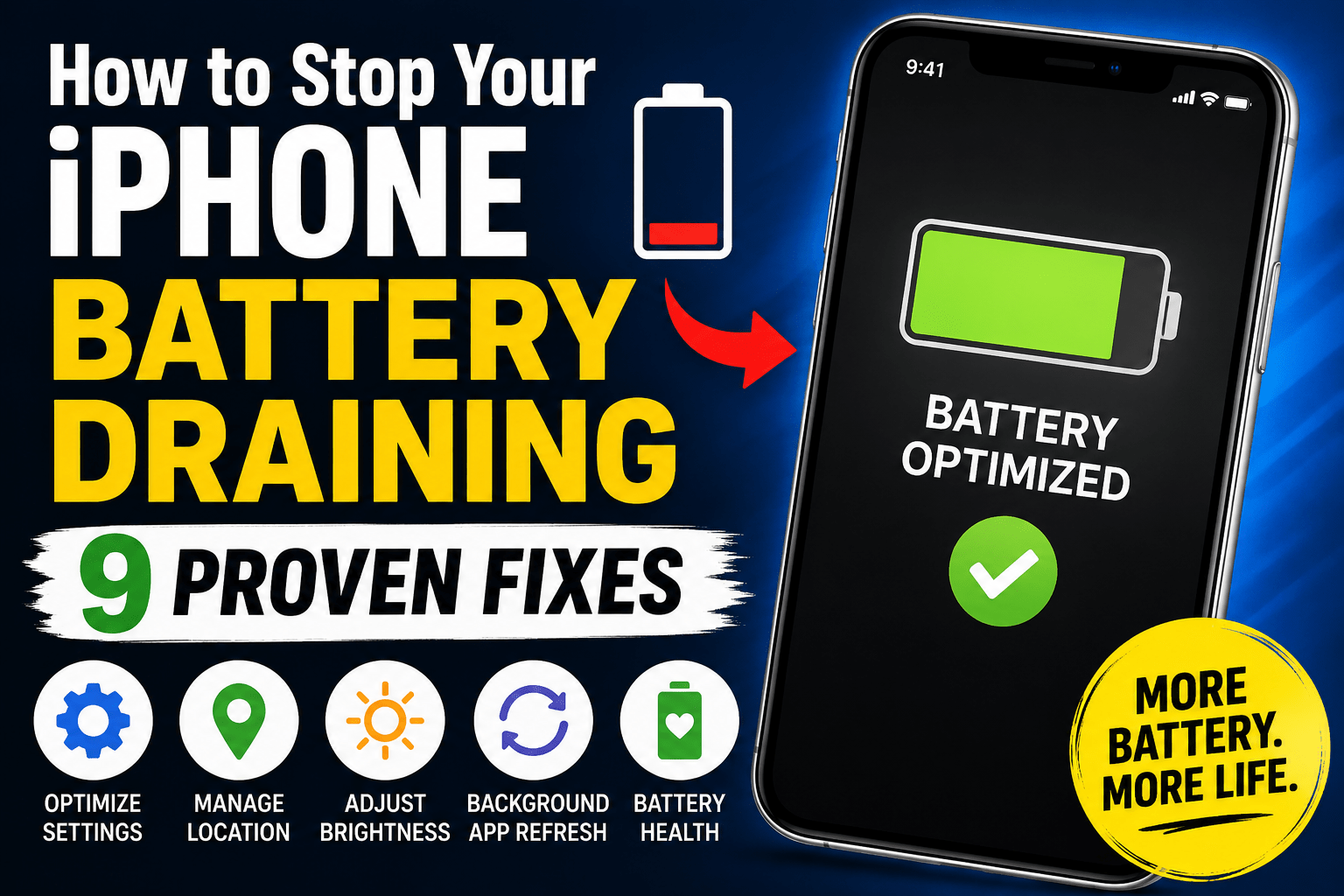
iPhone battery draining: Is your iPhone battery draining quickly even when you’re not using it heavily? You’re not alone. Battery life issues are among the most common complaints from iPhone users in the United States. Whether you own an iPhone 12, iPhone 13, iPhone 14, iPhone 15, or the latest iPhone 16, rapid battery drain can interrupt work, travel, and everyday communication.
After testing different settings and following Apple’s recommendations, many users can significantly improve iPhone battery life without replacing their device. In this guide, you’ll learn practical solutions that can help extend battery life and improve overall performance.
Why Is My iPhone Battery Draining So Fast?
If your iPhone battery is draining quickly, several factors could be responsible. Features such as Background App Refresh allow apps to update continuously even when they are not in use, which can consume additional power.
Keeping the screen brightness set too high and enabling always-on location services can also significantly reduce battery life. Running an outdated iOS version may lead to inefficient power management, while battery health degradation over time naturally decreases the battery’s ability to hold a charge.
In addition, constantly updating widgets, receiving excessive notifications, and using your iPhone in areas with a poor cellular signal can force the device to work harder, causing the battery to drain faster than usual.
Identifying and addressing these factors can help improve your iPhone’s battery performance and extend its daily usage.
Several factors can contribute to battery drain:
- Background App Refresh
- High screen brightness
- Always-on location services
- Old iOS versions
- Battery health degradation
- Widgets updating continuously
- Excessive notifications
- Poor cellular signal
Understanding these causes is the first step toward achieving longer battery life.
Check Battery Usage by App
To fixing iPhone battery draining, you can follow below steps:
How to Check Battery Usage
If you notice that your iPhone battery is draining faster than usual, checking which apps consume the most power can help identify the problem.
To do this, open the Settings app and tap Battery. Scroll down to the Battery Usage by App section, where you’ll see a detailed breakdown of battery consumption for each app. This information shows which apps have used the most power over the last 24 hours or the past 10 days.
Apps such as TikTok, Instagram, Facebook, and YouTube are often among the biggest battery consumers because they frequently perform background activities, stream videos, refresh content, and send notifications.
If one of these apps is using an unusually high percentage of battery power, consider limiting its background activity, reducing notifications, or spending less time using it to improve your iPhone’s battery life.
- Open Settings
- Tap Battery
- Scroll down to Battery Usage by App
Apps like TikTok, Instagram, Facebook, and YouTube often consume more power because they run background activities.
Turn Off Background App Refresh
Background App Refresh allows apps to update content and perform tasks even when they aren’t actively open. While this feature keeps apps up to date, it can also contribute to excessive battery drain, especially if many apps are refreshing in the background.
To manage this setting, go to Settings → General → Background App Refresh. From there, you can either disable the feature completely or turn it off for specific apps that don’t need to update continuously. Focus on disabling background refresh for apps you rarely use or those that consume a lot of battery power.
Turning off unnecessary Background App Refresh is one of the simplest and most effective ways to reduce battery drain on your iPhone and extend battery life throughout the day.
This is one of the easiest ways to reduce battery drain on iPhone.
Lower Screen Brightness and Use Dark Mode
Your iPhone’s display is one of the largest consumers of battery power. Keeping the screen too bright or using a light interface for extended periods can cause the battery to drain more quickly. Making a few simple adjustments can significantly improve battery life throughout the day.
For the best results, enable Auto-Brightness so your iPhone can automatically adjust the screen brightness based on surrounding light conditions. When indoors or in low-light environments, manually lowering the brightness can further reduce power consumption. You should also enable Dark Mode, which uses darker colors across the system interface and compatible apps.
Recommended Settings
- Enable Auto-Brightness to let your iPhone optimize screen brightness automatically.
- Use Dark Mode to reduce power usage and improve viewing comfort.
- Lower brightness indoors instead of keeping the screen at maximum levels.
Dark Mode is particularly effective on newer iPhones equipped with OLED displays, such as the iPhone 12, iPhone 13, iPhone 14, iPhone 15, and iPhone 16 series. Because OLED screens turn off individual pixels when displaying black colors, Dark Mode can help extend battery life while also reducing eye strain.
Enable Auto-Lock
Leaving your iPhone screen on when you’re not using it can unnecessarily drain the battery. Enabling Auto-Lock ensures that the display turns off automatically after a period of inactivity, helping conserve power and extend battery life.
To adjust this setting,
go to Settings → Display & Brightness → Auto-Lock.
For the best balance between convenience and battery efficiency, select 30 Seconds or 1 Minute. These shorter time intervals prevent the display from staying on longer than necessary and can noticeably improve battery performance throughout the day.
Recommended Auto-Lock Settings
- 30 Seconds – Maximum battery savings.
- 1 Minute – Good balance between usability and battery life.
Using a shorter Auto-Lock duration is a simple but effective way to make your iPhone battery last longer, especially when combined with other battery-saving settings such as Dark Mode and reduced screen brightness.
Disable Unnecessary Location Services
Location services are useful for navigation, weather updates, and certain apps, but constant GPS tracking can have a significant impact on your iPhone’s battery life. Apps that are allowed to access your location at all times continue to use power in the background, even when you’re not actively using them.
To manage these settings,
go to Settings → Privacy & Security → Location Services.
Review the apps listed and, for most of them, choose While Using the App instead of Always. This allows apps to access your location only when they are open, reducing unnecessary background activity and helping your battery last longer.
How to Change Location Permissions
- Open Settings.
- Tap Privacy & Security.
- Select Location Services.
- Choose an app.
- Set its permission to While Using the App rather than Always.
Apps such as social media, shopping, and food delivery services typically do not need continuous access to your location.
Restricting these permissions is one of the most effective ways to improve battery performance and reduce unnecessary power consumption on your iPhone.
Remove Unused Widgets
Widgets provide quick access to information, but they can also contribute to battery drain because they continuously refresh data in the background. Widgets that display frequently changing information-such as weather updates, stock prices, news headlines, and social media activity-may use more power than you realize.
If you rarely use certain widgets, removing them can help improve your iPhone’s battery life and reduce unnecessary background activity.
Widgets That Often Consume More Battery
- Weather widgets
- Stocks widgets
- Social media widgets
- News widgets
- Sports score widgets
How to Remove Widgets
- Touch and hold an empty area on the Home Screen.
- Tap the – (minus) button on the widget you want to remove.
- Select Remove Widget.
- Tap Done to save your changes.
Removing widgets you don’t regularly use won’t affect the apps themselves-they will remain installed and accessible. By reducing the number of widgets that continuously refresh data, your iPhone can conserve battery power and deliver better overall performance throughout the day.
Update iOS and Apps
Keeping your iPhone and apps up to date is one of the simplest ways to improve battery life. Apple regularly releases software updates that include bug fixes, security patches, performance improvements, and battery optimizations.
Outdated software can sometimes cause apps to behave inefficiently, leading to excessive battery drain.
To check for the latest iOS version,
go to Settings → General → Software Update.
If an update is available, download and install it. You should also keep your apps updated through the App Store, as developers frequently release updates to fix bugs and improve power efficiency.
Also Read: Why Is Your iPhone Battery Draining When Not in Use? Solutions & Fixes
Benefits of Updating Your iPhone
- Bug fixes that resolve battery-related issues.
- Security patches to protect your device.
- Performance improvements for smoother operation.
- Battery optimizations that help extend daily battery life.
Regularly updating both iOS and your apps ensures that your iPhone runs efficiently and minimizes unnecessary battery consumption. If you’re experiencing sudden battery drain after a major update, installing the latest patches can often resolve the problem and restore normal battery performance.
Turn On Reduce Motion
Visual effects and animations on your iPhone enhance the user experience, but they also require additional processing power, which can contribute to battery consumption.
Enabling Reduce Motion minimizes these animations and can help slightly extend battery life while making transitions feel faster.
To enable this feature,
go to Settings → Accessibility → Motion → Reduce Motion and turn it on.
Once enabled, your iPhone will reduce screen movement effects such as app-opening animations and parallax effects.
Benefits of Reduce Motion
- Reduces unnecessary animations and visual effects.
- Slightly improves battery efficiency.
- Makes app transitions appear faster.
- Can provide a smoother experience on older iPhones.
Although the battery savings are modest, turning on Reduce Motion is an easy adjustment that complements other battery-saving settings. When combined with lower screen brightness, Dark Mode, and optimized app settings, it can help your iPhone last longer throughout the day.
Check iPhone Battery Health
Over time, all rechargeable batteries degrade, which means your iPhone may not hold a charge as well as it did when it was new.
If you’re experiencing rapid battery drain, it’s important to check your battery’s health to determine whether the issue is caused by normal battery aging.
To view your battery health,
go to Settings -> Battery -> Battery Health & Charging.
Here, you’ll find a section called Maximum Capacity, which indicates how much charge your battery can hold compared to when it was brand new.
How to Check Battery Health
- Open Settings.
- Tap Battery.
- Select Battery Health & Charging.
- Look at the Maximum Capacity percentage.
What the Maximum Capacity Means
- 90–100% – Battery is in excellent condition.
- 80–89% – Normal wear with slightly reduced battery life.
- Below 80% – Battery performance has significantly declined.
Apple recommends replacing the battery when the Maximum Capacity falls below 80%, as battery life and overall performance may noticeably decrease. A battery replacement can often restore all-day battery life and improve your iPhone’s responsiveness.
If your iPhone displays a “Service” message in the Battery Health section, it is a strong indication that the battery should be replaced to maintain optimal performance.
When Should You Replace Your iPhone Battery?
All iPhone batteries gradually lose their ability to hold a charge over time. If your device no longer lasts through a typical day or starts showing performance issues, it may be time to consider a battery replacement.
Installing a new battery can significantly improve battery life and overall performance, making an older iPhone feel much closer to new.
Common Signs That Your iPhone Battery Needs Replacement
- Battery dies before the end of the day, even with moderate use.
- Unexpected shutdowns occur, especially when the battery percentage is still high.
- Slow performance or lag when opening apps and performing everyday tasks.
- Maximum Capacity below 80% in Settings → Battery → Battery Health & Charging.
- A “Service” warning appears in the Battery Health section.
- Your iPhone becomes excessively warm during normal use or charging.
Apple generally recommends replacing the battery once its Maximum Capacity falls below 80%, since battery degradation can affect both battery life and device performance.
A battery replacement is often much more affordable than buying a new phone and can extend the life of your iPhone by several years.
If your iPhone is otherwise functioning well, replacing the battery can restore all-day battery life, improve responsiveness, and make the device feel new again without the expense of upgrading to a newer model.
Frequently Asked Questions(FAQs)
Why is my iPhone battery draining quickly?
Background apps, screen brightness, location services, and battery degradation are common causes.
Does Dark Mode save battery?
Yes. On OLED iPhones, Dark Mode can help conserve power.
How do I improve iPhone battery life?
Disable unnecessary background activity, reduce brightness, and keep iOS updated.
What battery health percentage requires replacement?
Apple generally recommends replacement when Maximum Capacity falls below 80%.
Does Background App Refresh drain battery?
Yes. Turning it off for non-essential apps can improve battery life.
Summary
If your iPhone battery is draining quickly, simple adjustments can often make a noticeable difference. Most users can improve iPhone battery life without buying a new phone. By managing apps, optimizing settings, and monitoring battery health, you can enjoy longer battery life and better overall performance.



Rishi Sanuj is write article related to Tech and Gadget, Gaming, AI Tools, Software with 8+ years of experience covering PlayStation, and next-gen gaming trends.