
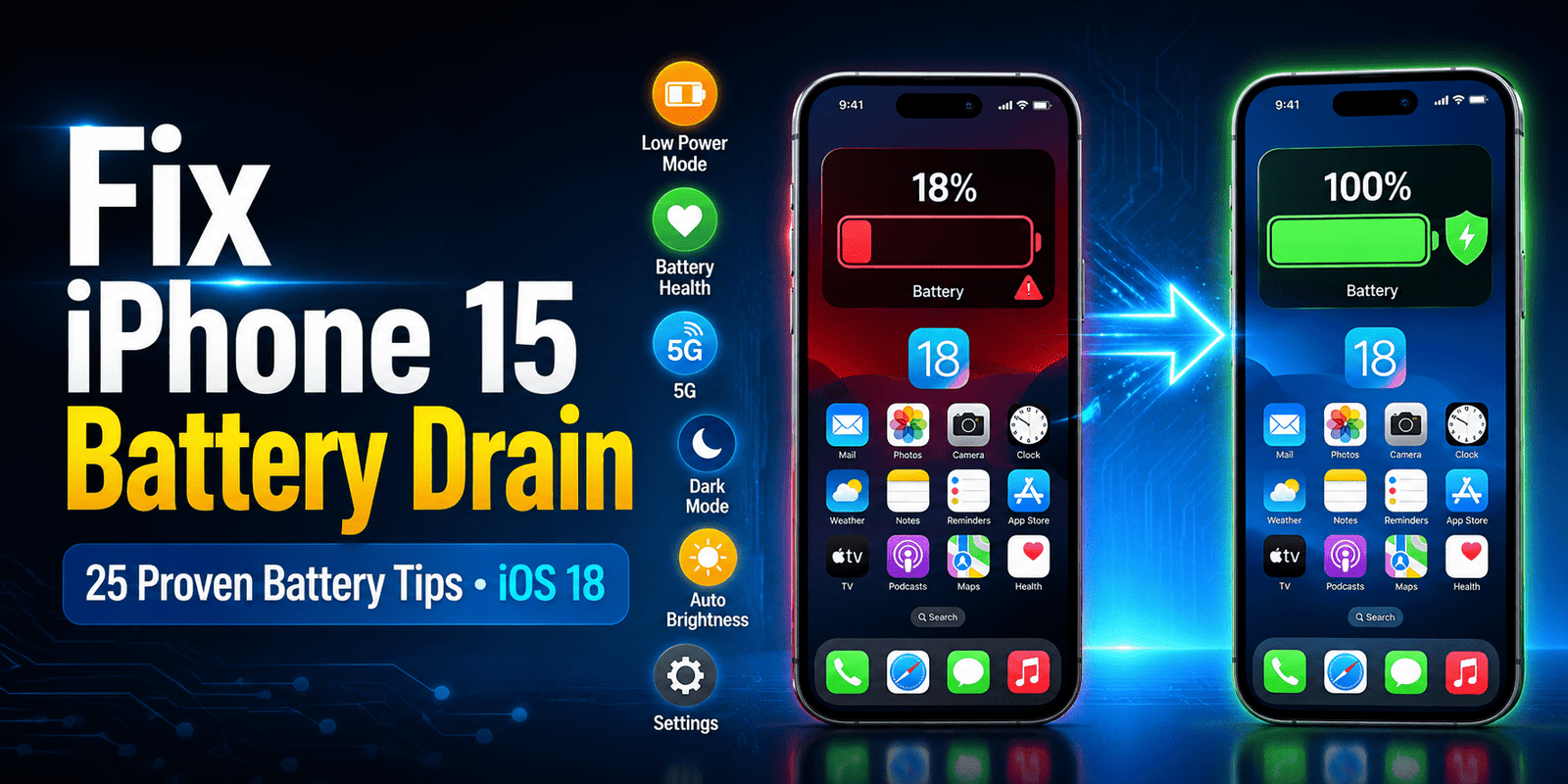
If your iPhone 15 battery draining too fast after updating to iOS 18, you’re not alone. Many iPhone 15 users notice faster battery depletion, overnight battery loss, or unexpected heating during everyday tasks like browsing, messaging, or streaming.
In many cases, iPhone Battery drain issues can be resolved with the right settings and troubleshooting steps rather than replacing the battery.
In this guide, you’ll learn how to identify the most common causes of iPhone 15 Battery Draining, understand whether the problem is related to iOS 18, specific apps, or your device settings, and apply practical solutions to improve battery life.
We’ll also explain how to check your iPhone’s battery health, optimize important battery settings, and recognize the signs that indicate it may be time to consider a battery replacement.
By the end, you’ll have the knowledge to keep your iPhone 15 running longer and more efficiently.
If your iPhone 15 Battery Draining too fast, the issue isn’t always a defective battery. Several factors, including iOS 18 background indexing, Background App Refresh, high screen brightness, Always-On Display, Location Services, weak cellular signals, widgets, Live Activities, battery aging, gaming, video recording, and 5G connectivity, can significantly increase power consumption.
After a major iOS update, your iPhone 15 may temporarily use more battery while indexing photos, apps, and system data, but this usually improves within a few days.
You may notice common symptoms such as overnight iPhone 15 Battery Drain, rapid battery percentage drops, excessive heating during everyday tasks, or specific apps consuming an unusually high amount of power.
Fortunately, most iPhone 15 Battery Drain problems can be fixed without replacing your device.
By identifying the root cause and optimizing a few key settings, you can improve battery life, maintain better battery health, and enjoy longer-lasting performance on your iPhone 15 running iOS 18.
Check Your Battery Health First
Before trying advanced battery-saving tips, check your iPhone 15’s Battery Health to understand its overall condition.
Go to Settings -> Battery -> Battery Health & Charging to view important information such as Maximum Capacity, Peak Performance Capability, and, on supported models, Cycle Count.
Maximum Capacity shows how much charge your battery can hold compared to when it was new, while Peak Performance Capability indicates whether the battery can deliver normal performance without unexpected slowdowns.
Cycle Count reflects how many complete charge cycles the battery has gone through. Reviewing these metrics helps determine whether battery drain is caused by settings, software, or natural battery aging.
25 Proven Ways to Boost Battery Life on iPhone 15
Enable Low Power Mode
Low Power Mode is one of the quickest ways to extend your iPhone 15’s battery life. When enabled, it reduces background activities such as mail fetching, automatic downloads, visual effects, and app refresh to conserve power.
Your iPhone may also temporarily reduce processing performance for non-essential tasks.
To turn it on, go to Settings -> Battery -> Low Power Mode.
It’s especially useful when your battery falls below 20% or when you need your phone to last longer between charges.
Reduce Screen Brightness
The display is one of the biggest battery consumers on the iPhone 15. Keeping the screen at maximum brightness all day can significantly reduce battery life.
Lowering the brightness manually or using the Control Center can noticeably improve battery performance without affecting everyday usability.
Indoors, a lower brightness level is often sufficient and helps extend battery life throughout the day.
Use Auto-Brightness
Auto-Brightness automatically adjusts your screen based on surrounding lighting conditions. Instead of keeping the display brighter than necessary, it reduces brightness indoors and increases it only when needed outdoors.
This feature not only improves viewing comfort but also helps conserve battery power.
Enable it by going to Settings → Accessibility → Display & Text Size → Auto-Brightness.
4. Turn Off Always-On Display
Supported iPhone 15 models include an Always-On Display that keeps the Lock Screen partially active to show the time, widgets, and notifications. Although Apple designed it to be energy efficient, it still consumes additional battery throughout the day. If maximizing battery life is your priority, disable this feature by navigating to Settings → Display & Brightness → Always-On Display.
Enable Auto-Lock
Leaving your screen on unnecessarily wastes valuable battery power. Setting Auto-Lock to 30 seconds or one minute ensures your display turns off automatically when not in use.
Since the display is the largest power consumer, shortening screen-on time can significantly increase battery life.
You can change this setting under Settings → Display & Brightness → Auto-Lock.
Disable Background App Refresh
Many apps continue updating content even when you’re not actively using them. While this keeps apps current, it also consumes battery and mobile data.
Disable Background App Refresh for apps that don’t require constant updates by going to Settings → General → Background App Refresh.
Leaving it enabled only for essential apps can improve battery life.
Turn Off Unnecessary Notifications
Every notification wakes your screen, activates the processor, and may trigger vibrations or sounds, all of which consume battery.
Review your installed apps and disable notifications for those that aren’t important. Go to Settings → Notifications, then limit alerts to only the apps you truly need.
This also reduces distractions while improving battery efficiency.
Review Battery Usage by Apps
If your battery drains unusually fast, check which apps consume the most power.
Open Settings → Battery to view battery usage over the last 24 hours or 10 days. Apps showing excessive
background activity or unusually high usage may need updated settings, restricted permissions, or even reinstallation.
Identifying battery-hungry apps is one of the most effective troubleshooting steps.
Update Apps Regularly
Outdated apps may contain bugs that cause excessive battery drain or poor compatibility with iOS 18.
Developers frequently release updates to improve performance, stability, and energy efficiency.
Open the App Store regularly and install available updates to ensure your apps run smoothly and use battery more efficiently.
Install the Latest iOS Version
Apple regularly releases iOS updates that fix software bugs, improve battery management, and optimize overall performance.
If you’re experiencing battery drain after an update, check whether a newer iOS version addresses the issue. Before updating, back up your device and ensure you have sufficient battery or connect it to a charger.
Disable Live Activities
Live Activities provide real-time updates for sports scores, food deliveries, timers, and navigation directly on the Lock Screen and Dynamic Island.
While convenient, they continuously refresh information, increasing battery usage.
If you rarely use this feature, disable it for selected apps to reduce unnecessary background activity and improve battery life.
Limit Location Services
Location tracking is essential for apps like Maps, weather, and ride-sharing services, but continuous GPS usage consumes significant battery.
Review each app’s location permission under Settings → Privacy & Security → Location Services and choose While Using the App instead of Always whenever possible.
Disable location access entirely for apps that don’t need it.
Turn Off Keyboard Haptics
Keyboard haptics provide vibration feedback while typing, making the keyboard feel more responsive. However, each vibration uses additional power.
Although the impact is relatively small, disabling keyboard haptics can help save battery over time.
You can turn it off under Settings -> Sounds & Haptics -> Keyboard Feedback.
Reduce Motion Effects
Animations such as zoom effects, transitions, and parallax improve the visual experience but also require additional graphics processing.
Enabling Reduce Motion minimizes these animations, which can slightly improve battery life while making the interface feel faster.
Go to Settings -> Accessibility -> Motion to enable this feature.
Use Dark Mode
The iPhone 15 features an OLED display, where black pixels consume significantly less power than bright colors.
Enabling Dark Mode can help reduce battery usage, especially when using compatible apps in low-light environments.
Activate it by going to Settings -> Display & Brightness -> Dark or schedule it to turn on automatically.
Disable Raise to Wake
Raise to Wake automatically turns on the display whenever you lift your iPhone. While convenient, it can activate accidentally when moving or carrying your phone, resulting in unnecessary battery consumption.
Disable this feature under Settings -> Display & Brightness -> Raise to Wake if you don’t use it regularly.
Use Wi-Fi Instead of 5G When Possible
Although 5G offers faster internet speeds, it generally uses more battery than Wi-Fi.
Whenever you’re at home, work, or connected to a reliable wireless network, using Wi-Fi helps reduce power consumption.
If 5G isn’t necessary, you can also select 5G Auto or LTE in your cellular settings to improve battery life.
Enable Optimized Battery Charging
Optimized Battery Charging learns your daily charging habits and delays charging beyond 80% until you need your device.
This feature reduces battery aging caused by prolonged charging at full capacity.
Enable it under Settings -> Battery -> Battery Health & Charging to help preserve long-term battery health.
Remove Unused Widgets
Widgets continuously update information such as weather forecasts, stock prices, news headlines, and reminders.
Having too many widgets on your Home Screen or Lock Screen increases background activity and battery usage.
Remove widgets you rarely use to reduce unnecessary power consumption while keeping your interface clean.
Limit Background Photos Sync
If you use iCloud Photos, your iPhone may upload and sync thousands of photos and videos in the background, especially after vacations or major imports.
This process consumes battery, Wi-Fi, and processing power. When battery life is critical, connect to Wi-Fi and power before allowing large photo libraries to sync.
Reduce Mail Fetch Frequency
If your email accounts fetch new messages every few minutes, your iPhone frequently wakes network services, increasing battery usage.
Changing the fetch interval to every 30 minutes, hourly, or manually can reduce unnecessary background activity.
Configure this under Settings -> Mail -> Accounts -> Fetch New Data.
Restart Your iPhone Weekly
Restarting your iPhone once a week clears temporary system processes, refreshes memory, and resolves minor software glitches that may contribute to excessive battery drain.
Although simple, a regular restart can improve overall performance and help maintain efficient battery usage over time.
Reset Network Settings (If Needed)
Persistent network issues such as constant signal searching, Wi-Fi disconnections, or Bluetooth problems can increase battery drain.
Resetting Network Settings restores Wi-Fi, Bluetooth, VPN, and cellular settings without deleting personal data. Use this option only if you’re experiencing connectivity-related battery problems.
Reset All Settings (Last Resort)
If battery issues continue despite trying other solutions, resetting all settings may resolve hidden software configuration problems.
This option resets system preferences such as Wi-Fi, privacy, keyboard, and accessibility settings but does not erase your photos, apps, or personal files.
Be prepared to reconfigure your preferred settings afterward.
Replace the Battery (When Necessary)
If your iPhone’s Maximum Capacity has dropped below 80%, battery life is noticeably shorter, or you experience unexpected shutdowns, replacing the battery may be the best solution.
While software optimizations can help, they cannot restore a worn lithium-ion battery.
Always choose Apple or an Apple Authorized Service Provider for battery replacement to ensure genuine parts, proper installation, and continued safety and performance.
Best Battery Settings for iPhone 15
| Setting | Recommended |
|---|---|
| Brightness | Auto |
| Low Power Mode | On when needed |
| Background Refresh | Off |
| Location | While Using App |
| Auto Lock | 30 Seconds |
| Always-On Display | Off |
| Dark Mode | Enabled |
| 5G | Auto |
Common Battery Drain Mistakes
Many iPhone 15 users unknowingly reduce battery life through everyday habits. Common mistakes include charging your iPhone overnight in hot environments, which can accelerate battery aging, using cheap or uncertified chargers that may generate excess heat, and constantly force-closing apps, even though iOS efficiently manages background apps.
Keeping too many Home Screen or Lock Screen widgets active also increases background activity and power consumption.
Another major mistake is using maximum screen brightness all day, as the display is one of the biggest battery consumers.
Avoiding these habits can improve battery performance, extend battery health, and help your iPhone last longer between charges.
Does iOS 18 Cause Battery Drain?
Yes, iOS 18 may temporarily cause increased battery drain immediately after a major update.
This is usually because your iPhone is indexing photos, files, apps, and system data in the background, a process that can take several hours or even a few days.
However, if excessive battery drain continues well beyond this period, it may indicate a software bug, a poorly optimized app, or incorrect settings rather than the update itself.
Keeping both iOS and your apps up to date is important, as Apple and app developers regularly release updates that fix bugs, improve performance, and optimize battery efficiency.
When Should You Replace Your iPhone Battery?
Most iPhone battery issues can be resolved by adjusting settings or updating iOS, but there comes a point when a battery replacement is the best solution.
Check Settings -> Battery -> Battery Health & Charging to review your battery’s condition.
If the Maximum Capacity has dropped to 80% or lower, your battery may no longer hold enough charge for a full day of normal use.
Other warning signs include unexpected shutdowns, rapid battery drain even after optimizing settings, or a battery that swells or causes the display to lift.
A swollen battery is a safety risk and should be serviced immediately.
For the safest and most reliable repair, always have your battery replaced by Apple or an Apple Authorized Service Provider using genuine replacement parts.
10 Fixes That Actually Work For iPhone Battery Draining While Charging
Frequently Asked Questions (FAQs)
Why is my iPhone 15 Battery Draining overnight?
Overnight battery drain is often caused by background app activity, iCloud syncing, Location Services, Live Activities, or iOS indexing after an update.
Check Settings -> Battery to identify apps using excessive power while your phone is idle.
Does Dark Mode save battery?
Yes. On the iPhone 15’s OLED display, Dark Mode can help reduce battery consumption because black pixels require less power than bright colors. The savings are most noticeable when using Dark Mode in compatible apps.
Does Low Power Mode damage the battery?
No. Low Power Mode is an Apple-designed feature that safely reduces background activities, visual effects, and automatic downloads to extend battery life. It does not harm your battery or reduce its lifespan.
Why is my iPhone hot after updating to iOS 18?
It’s normal for your iPhone to become slightly warm after a major iOS update because it’s indexing photos, apps, and system files. If overheating continues for several days, check for app updates or software bugs that may be causing excessive CPU usage.
What battery health percentage is considered good?
A battery health of 90–100% is considered excellent, while 80–89% is still suitable for most users. If your Maximum Capacity drops below 80%, Apple generally recommends considering a battery replacement for the best performance.
Does 5G drain the battery faster?
Yes. Compared to LTE or Wi-Fi, 5G can consume more battery, especially in areas with weak or unstable signal coverage. Using 5G Auto, LTE, or Wi-Fi whenever possible can help improve battery life.
How long should an iPhone 15 battery last?
For most users, the iPhone 15 battery should comfortably last a full day with typical activities such as browsing, messaging, streaming, and social media. Heavy gaming, video recording, and prolonged 5G usage can reduce battery life significantly.
Should I charge my iPhone to 100% every day?
Occasionally charging to 100% is perfectly safe, but keeping your battery between 20% and 80% for everyday use can help reduce long-term battery wear. Enabling Optimized Battery Charging further protects battery health.
Does wireless charging reduce battery life?
Wireless charging itself does not damage your battery. However, it may generate more heat than wired charging, and excessive heat can contribute to faster battery aging. Using Apple-certified MagSafe or Qi-compatible chargers helps ensure safe and efficient charging.
How can I improve battery health over time?
To maintain good battery health, avoid exposing your iPhone to extreme heat, use certified chargers, enable Optimized Battery Charging, keep iOS updated, reduce unnecessary background activity, and avoid letting the battery remain at 0% for extended periods. These habits can help maximize your battery’s lifespan and overall performance.
Final Verdict
Most iPhone 15 Battery Drain issues can be resolved by optimizing settings, managing power-hungry apps, and keeping iOS updated.
If battery drain starts immediately after an iOS 18 update, allow a few days for background indexing to finish.
However, if problems persist or battery health drops below 80%, contact Apple Support or an Apple Authorized Service Provider for a professional battery assessment.



Rishi Sanuj is write article related to Tech and Gadget, Gaming, AI Tools, Software with 8+ years of experience covering PlayStation, and next-gen gaming trends.